
Apple began rolling out the official release of iOS 27 on September 14. As expected, the list of new features is extensive. After skimming through names and highlights, it is not immediately obvious what to explore first on your own iPhone. Siri is supposedly smarter, Photos has acquired unfamiliar editing tools, and you can now fine-tune AirPods audio directly.
Looking closer at Apple’s announcement reveals a coherent through-line: reducing the friction of describing what is on your screen in words, opening third-party tools just to adjust a single photo, or manually assembling Shortcuts action by action. It is an update where the real question is not how many new buttons appeared, but how many steps are saved on tasks you already do.
One distinction is essential upfront: while iOS 27 is out worldwide, the new Siri AI launches initially in an English beta, with broader language support rolling out in waves through October. Updating the operating system is not the same as having access to every new Siri capability right away. With that boundary in mind, let’s look at the changes that matter most. Apple Release Announcement

Seeing What You Once Had to Explain to Siri
You might spot an interesting item on a webpage without knowing its name. Opening a search box leaves you unsure of what to type; trying to describe its shape and texture in words often turns up unrelated results. This is precisely where a screen-aware Siri proves useful.
The new Siri AI interprets what is currently on screen to answer questions or search the web when necessary. Visual Intelligence essentially hands Siri the object of your search directly from the display. In Apple’s iPad demonstration below, a user searches for similar glassware found on a webpage simply by tapping the item or circling it with Apple Pencil. Apple Intelligence Overview

iPhone cameras gain a dedicated Siri mode as well. You can point the camera at an object in front of you to ask questions or trigger actions. When encountering an unfamiliar flower, you no longer need to describe its petals—you simply show it.

The conversational interface also evolves beyond one-off queries. Apple introduces the new Siri as follows:
“Naturally converse with Siri AI through text or voice to find what you need and get more done.”
What matters here is not merely the appearance of a chat interface. Conversations are consolidated within a dedicated Siri experience that syncs across Apple devices, making previous discussions easy to retrieve. The key test will not be how well Siri listens, but how seamlessly it connects comprehension to actual task completion.
When the Frame Was Not Quite Right After the Shot
Reviewing photos often turns up a shot where an expression is perfect, but the framing feels slightly off. You wish you had taken one step to the side, or that there were just a bit more breathing room along the edges. When the moment has passed, that frustration tends to linger.
The new editing suite in Photos addresses this directly. Spatial Reframing adjusts perspective and angle after capture, while Extend broadens the outer edges of an image. It expands photo editing well beyond simply deciding what to crop out. Apple Photo Editing Tools
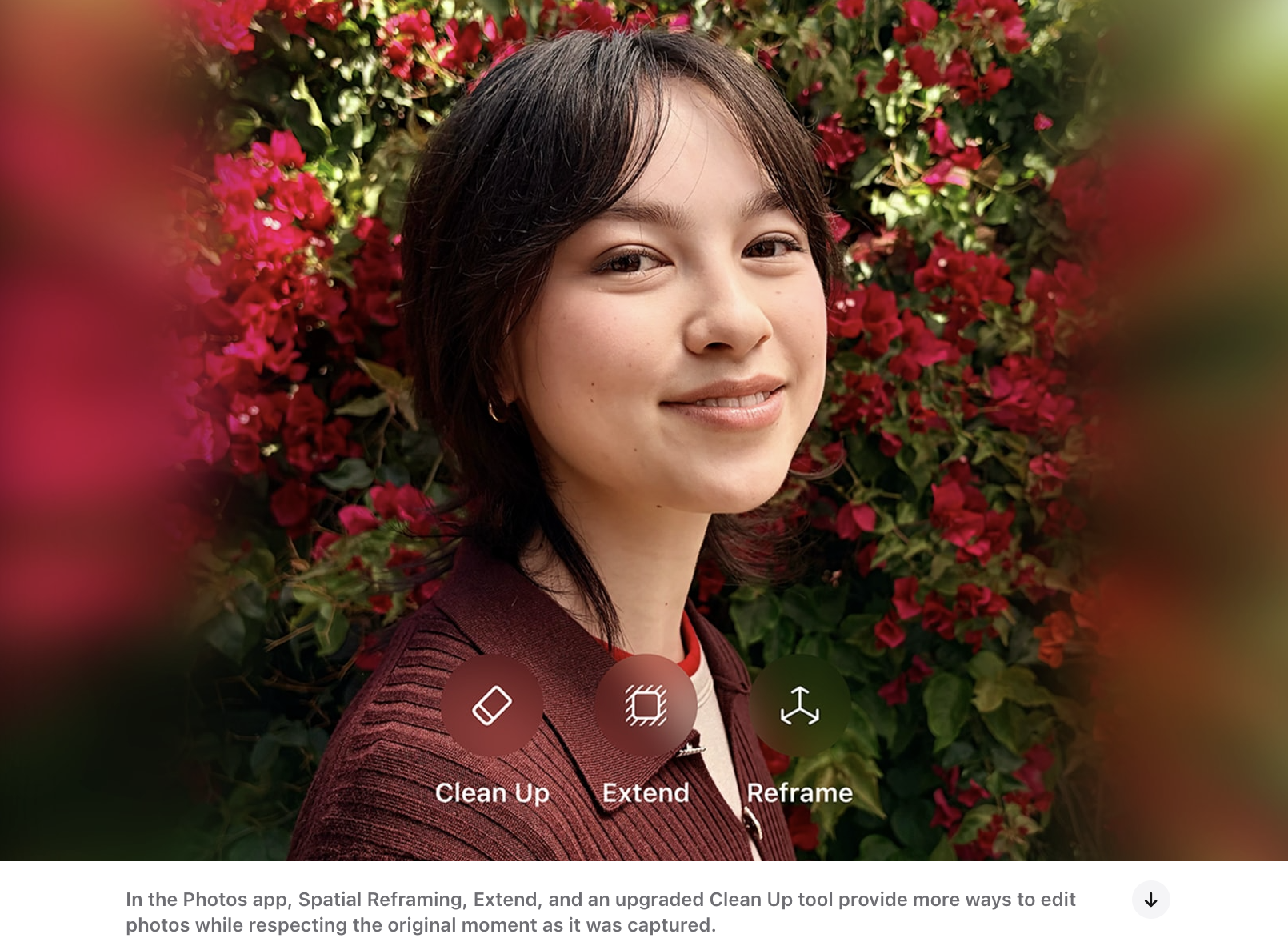
Clean Up has also been improved. Apple notes that it can now remove larger objects than before. That does not mean every photo will be cleared seamlessly; areas with complex boundaries, such as hair strands or busy patterned backgrounds, will still reward a closer zoom after editing.
Importantly, this type of editing is not the same as recovering the actual physical scene as it was. While widening borders or altering perspective can yield pleasing results, it helps to distinguish what was genuinely captured from what software constructed. Having more ways to salvage a photograph is welcome, but results will still depend on the image.
Shortcuts: Starting with What You Want Done
Shortcuts are invaluable once configured, but building them from scratch has always carried a steep learning curve. The intended task may be simple, but figuring out which actions to select and how to pipe them together often meant spending more time studying automation than saving time with it.
The newly introduced Describe a Shortcut feature lets you state what you want in plain language, and the system connects the appropriate actions for you. Apple used the example of sending an arrival estimate when leaving work. Rather than memorizing action names first, users can now start directly from their objective. iOS 27 Shortcuts Overview
That said, reviewing the generated shortcut remains worthwhile. Checking who messages are sent to and under what conditions helps ensure the automation matches your intent. Starting with brief, easily verified workflows is the best way to get comfortable. Reducing the friction of an empty canvas is, on its own, a meaningful change for newcomers.
Tailoring Liquid Glass and AirPods Audio
Alongside headline AI features, the change most apparent in daily use may well be the Liquid Glass adjustments. Translucent interfaces look striking, but overlapping text and background elements can quickly compromise readability.
iOS 27 introduces a slider that adjusts Liquid Glass from fully transparent to a more saturated, opaque finish. Apple also highlighted improvements to contrast and legibility. Having control over the intensity of the glass effect makes this setting worth checking first for anyone who found earlier interfaces visually busy.
In AirPods settings, Apple now offers Custom EQ to adjust bass, midrange, and treble independently. For anyone who found low-end lacking or high frequencies overly sharp, this is a welcome option. When adjusting it, start with a familiar track and move one frequency band at a time; shifting everything at once makes it difficult to pinpoint what changed. Liquid Glass and AirPods Custom EQ Guide
Reviewing Child Browsing Requests Inside Messages
For families sharing Apple devices with children, another subtle addition is worth noting. With the new Ask to Browse setting, when a child attempts to visit an unapproved site in Safari, a permission request can be routed directly to a parent’s Messages thread.
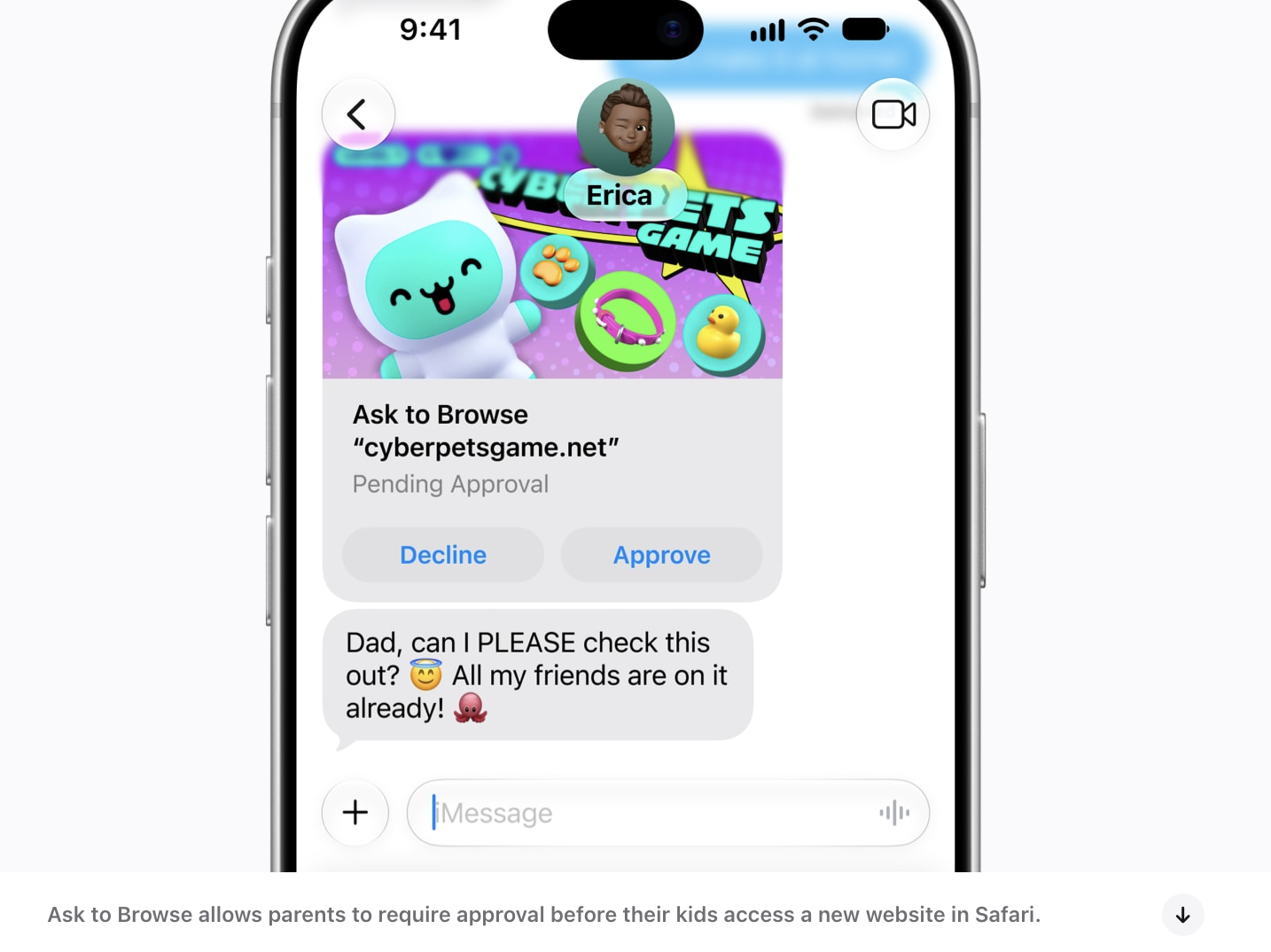
This operates independently of daily screen time caps. Even if screen time remains, parents can review specific browsing destinations as they arise. Apple has also updated Screen Time reports and schedule management. If you are preparing a first iPhone for a child, this feature may matter more than the latest Siri demonstrations. Apple Parental Controls Overview
Headline Speed Numbers Come with Context
Beyond new features, baseline system operations received tuning. Apple published figures indicating up to 30% faster app launches, up to 70% faster photo loading, and up to 80% faster AirDrop transfers. These figures, however, will not feel identical across every iPhone model.
The announcement footnotes reveal that app launches were tested on iPhone 11 Pro Max, photo loading on iPhone 15, and AirDrop on iPhone 16 Plus—comparing iOS 26.6 with pre-release builds of iOS 27. These are not performance metrics gathered from a single reference device. Test Conditions: Footnotes 3–5
Even so, speed improvements to daily routines are always welcome. While specialized features are used occasionally, opening apps and browsing photos are constant, unconscious actions. Detailed conditions for high-speed AirDrop can be found in our dedicated AirDrop speed guide.
iPhones That Can Update vs. iPhones That Can Run AI
Before installing, one critical distinction remains: the list of devices eligible for iOS 27 is not identical to the list supporting Apple Intelligence. A standard iPhone 15, for instance, receives iOS 27, but Apple Intelligence requires an iPhone 15 Pro or Pro Max. Similar model names diverge sharply here. iOS 27 Supported Devices · Apple Intelligence Supported Devices
Furthermore, language rollout schedules and server-dependent AI features are subject to daily usage tiers, with Apple outlining plans for expanded access tiers in the future. Assuming every feature operates without limits simply because it is part of the OS would be a mistake. Feature Availability and Usage Limits
What stands out most in this release is whether the barrier to Shortcuts has genuinely lowered. If people who previously found automation daunting can now build workflows easily, that will outlast any keynote demonstration. Make a backup first, verify which features your specific device supports, and start by streamlining one repetitive task rather than trying every setting at once.