
When installing and attempting to sign into the Spotify desktop app on a Mac, users frequently encounter an issue where the default browser, Safari, opens with the message: “Safari cannot open the page ‘http://127.0.0.1:4382/login?code=...’ because the server where this page is located isn't responding.”
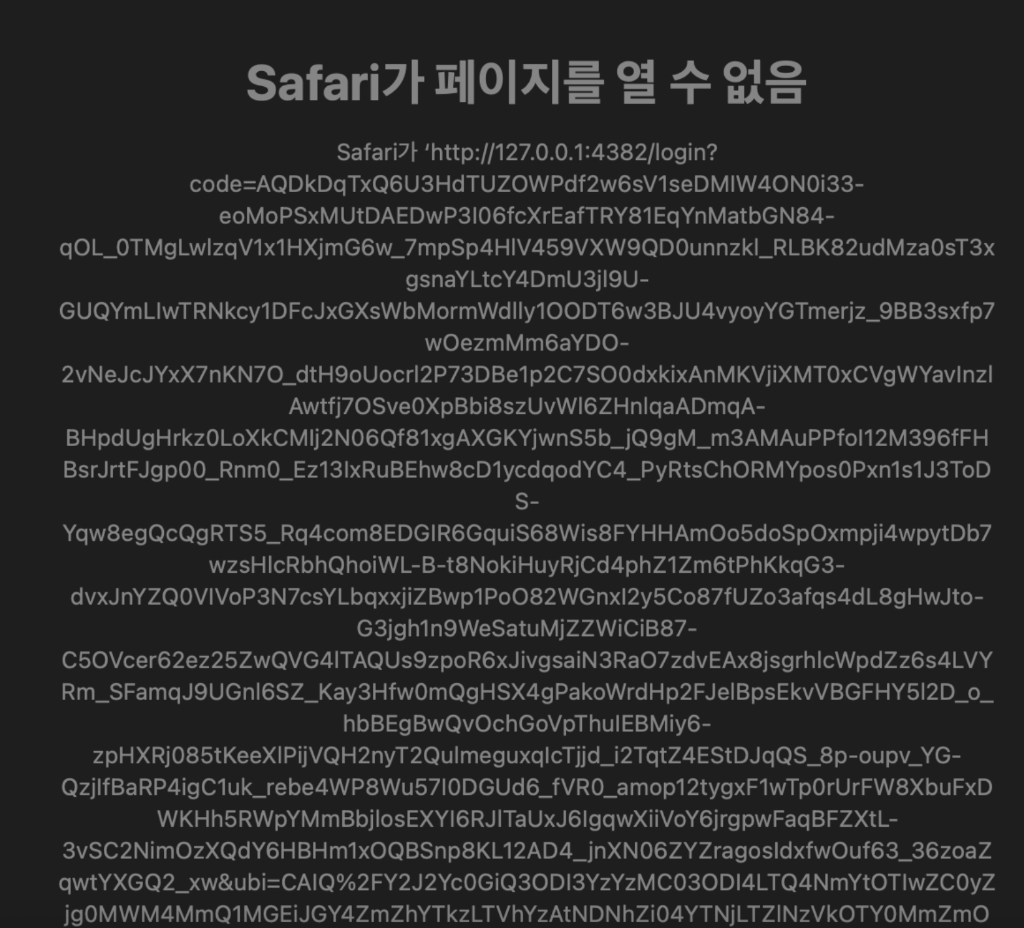
Clicking retry inside Spotify simply reloads the same blank error screen. Because Spotify is an international streaming service, many users mistakenly attribute this issue to VPN configurations or network geoblocking. Here is the technical explanation of why this error happens, why VPNs are completely unrelated, and how to resolve it immediately using a single Terminal command.
The Mechanics Behind Local Loopback Authentication in Safari
To adhere to modern OAuth 2.0 PKCE security standards, the Spotify Mac desktop application delegates user authentication to the system default browser rather than an embedded web view.
The authentication flow operates as follows:
- When you click ‘Log in’ in the Spotify desktop app, Spotify spins up a lightweight local HTTP listener bound to 127.0.0.1 on an arbitrary dynamic port (such as 4382).
- Simultaneously, macOS launches the default browser (Safari) directed to Spotify's official authentication portal at
accounts.spotify.com. - Once credentials are submitted and verified, Spotify's authorization server issues a redirect to
http://127.0.0.1:4382/login?code=AQD.... - Safari requests this address, and the local Spotify background listener captures the authorization code to complete login.
When Safari displays “The server is not responding,” it indicates that the local Spotify background listener either timed out, crashed, failed to bind to the designated port, or Safari's privacy settings intercepted the unencrypted local HTTP handshake.
Why VPN Configurations Are Completely Unrelated
Many users wonder whether having a VPN active—or not having one active—causes this loopback connection error. This failure has zero connection to VPN usage.
The address 127.0.0.1 is not a public internet IP routed through external gateways or ISPs. It is the universal loopback (localhost) interface representing your own Mac.
- VPNs govern outbound internet packets traveling over external network interfaces (Wi-Fi or Ethernet).
- The 127.0.0.1 communication never touches an external router. It is strictly local Inter-Process Communication (IPC) between Safari and the Spotify client within macOS.
Even on a pristine Mac network without any VPN installed, background process deadlock or Safari security sandboxing will trigger this exact error screen.
Forcefully Terminating Zombie Processes via Terminal
The fastest and most reliable fix is purging stuck Spotify helper processes using Terminal.
Closing Spotify from the Dock or pressing Cmd+Q often leaves orphan Spotify Helper background processes running in memory. These ghost instances retain socket locks on previous ports, preventing new Spotify sessions from successfully binding a fresh listener.
Open Spotlight (Cmd + Space), type Terminal, and execute the following command:
killall Spotify
This command terminates all active Spotify parent and child processes instantaneously, releasing occupied socket listeners. Relaunch Spotify and click Log in; Safari will now successfully hand off the callback token.
Checking Safari Private Relay and Browser Workarounds
If the error persists after running the Terminal command, Apple's iCloud Private Relay or Safari's Intelligent Tracking Prevention is likely intercepting the unencrypted local loopback port.
Private Relay proxies web traffic through encrypted relays. Because Spotify's callback uses plaintext http:// over a non-standard high port, Safari can mistakenly treat it as an external proxyable request rather than an internal loopback.
- Temporarily Disable Private Relay: Navigate to Apple Menu () ▸ System Settings ▸ [Your Name] ▸ iCloud ▸ Private Relay and switch it off temporarily.
- Temporary Default Browser Switch (Guaranteed Workaround):
- Go to System Settings ▸ Desktop & Dock and change the ‘Default web browser’ to Google Chrome or Microsoft Edge.
- Return to Spotify and click ‘Log in’.
- Chrome handles the localhost callback redirect cleanly without loopback interference, logging you in instantly.
- Once logged in, switch your default browser back to Safari. Spotify retains authentication persistently.
Resetting Local Spotify Cache
If corrupted session state or invalid local cookies prevent token parsing, clear the Spotify application cache. You can run the following one-line Terminal command to purge the persistent cache directly:
rm -rf ~/Library/Application\ Support/Spotify/PersistentCache ~/Library/Caches/com.spotify.client
Alternatively, open Finder, press Shift + Cmd + G, navigate to ~/Library/Application Support/Spotify and ~/Library/Caches/com.spotify.client, and remove the cached files manually before restarting the application.
This 127.0.0.1 error is an internal loopback handshake hiccup between macOS apps, not a network or account block. Running killall Spotify or temporarily logging in via Chrome resolves the issue cleanly in minutes.